
Key Takeaways
Most successful WordPress hacks in 2024–2025 came from vulnerable plugins and themes or weak credentials—not WordPress core itself. According to industry data, plugins account for 56% of breaches while core vulnerabilities represent just 2%, thanks to automatic updates.
- A cloud web application firewall in front of WordPress blocks bots, exploits, and DDoS attacks before they reach PHP or your database, reducing server load and attack surface simultaneously.
- Automatic updates, backups, and SSL are necessary but insufficient on their own; they must be combined with a WAF and hardening best practices to achieve real protection.
- WAF-as-a-Service is easier to manage than DIY server firewalls, works across shared hosting, VPS, and containers, and provides virtual patching for zero-days in popular WordPress firewall plugins and themes.
- This article provides a concrete, step-by-step security checklist tailored to WordPress users—whether you run a small business site, an agency with multiple clients, or a WooCommerce store handling customer data.
Why WordPress Security Matters in 2026
WordPress powers over 43% of websites globally. That market share makes it the most targeted CMS by a wide margin. Throughout 2024, we saw recurring mass-exploits in plugins—vulnerable file upload handlers, SQL injections in contact forms, and authentication bypasses in membership plugins.
Attackers don’t manually probe your site. They use automated botnets scanning millions of domains daily for wp-login.php, xmlrpc.php, and known plugin paths like /wp-content/plugins/revslider/. These automated tools are designed to exploit different attacks, such as brute force, SQL injection, and file upload vulnerabilities. Wordfence telemetry from early 2025 shows 58 billion brute force attacks blocked in a single quarter. Your site is in that scan list whether you know it or not.
Business Impact of WordPress Security Breaches
The business impact is real:
Incident Type | Typical Consequence |
|---|---|
SEO spam injection | Google blacklisting, 70%+ traffic drop |
WooCommerce data theft | GDPR fines averaging €4.45M, customer trust loss |
DDoS-related downtime | Revenue loss, especially for stores and booking sites |
Cryptomining malware | Hosting suspension, degraded performance |
Security is a shared responsibility. WordPress core ships security fixes and auto-updates. Your hosting provider runs network firewalls and rate limiting. But those are generic protections. A dedicated WAF layer adds application-aware filtering tuned specifically for WordPress attack patterns.
This article is practical and WAF-focused. You don’t need to become a full-time security engineer. You need a clear checklist and the right tools.
How a Modern WAF Protects Your WordPress Site
How Cloud WAFs Work
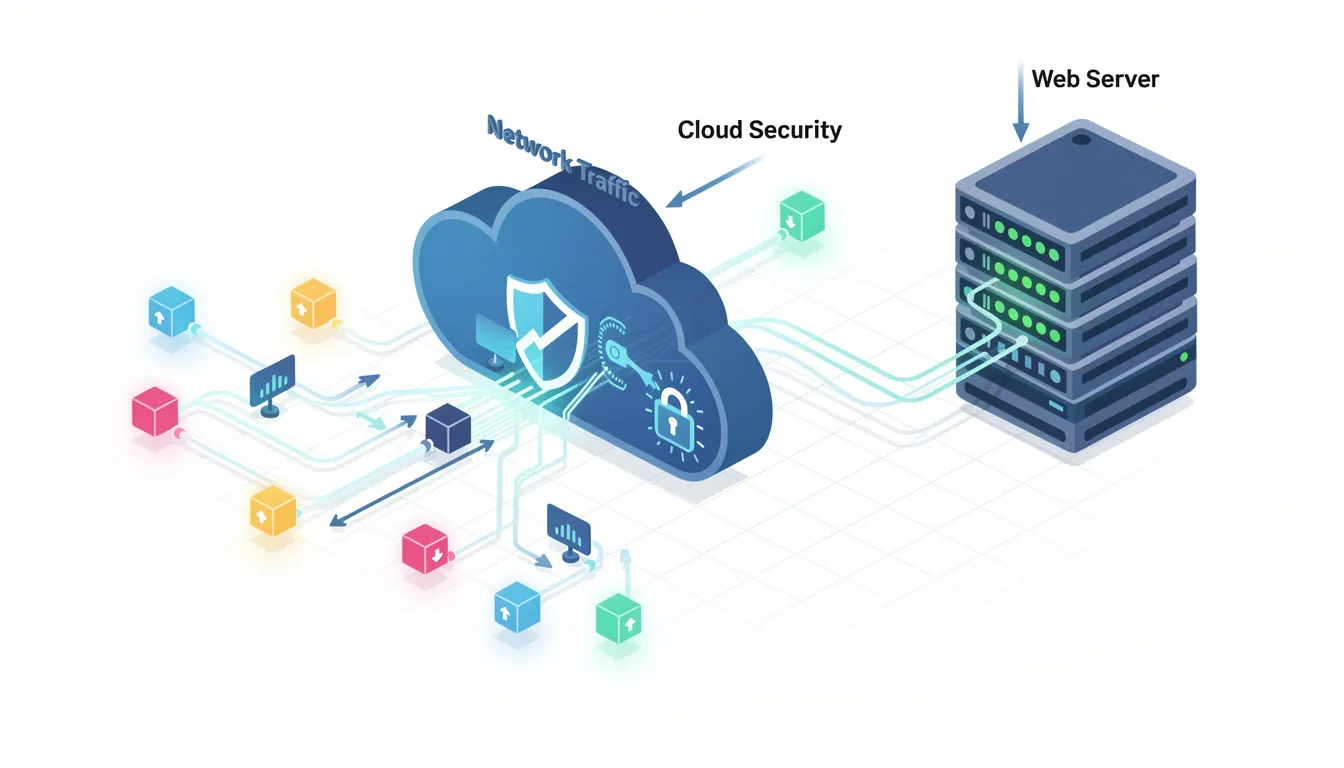
A web application firewall sits between the internet and your WordPress server. It inspects every HTTP and HTTPS request before it touches your hosting environment. Think of it as a bouncer checking IDs at the door—except this bouncer can process thousands of checks per second and recognizes millions of known bad actors.
A WAF-as-a-Service runs in the cloud, typically via DNS configuration or reverse proxy. You point your domain’s DNS to the WAF provider, and all incoming traffic flows through their infrastructure first. Clean requests pass through to your origin server. The WAF ensures that only safe visitors are allowed access to your site, while blocking malicious traffic to keep your website secure and performing optimally. Malicious requests get blocked at the edge.
Benefits Over Plugin Firewalls
Unlike plugin-based firewall solutions that run inside WordPress, a cloud WAF can absorb large DDoS attacks without your server ever seeing the harmful traffic. When 10,000 bots hammer your wp-login.php simultaneously, your PHP process doesn’t spawn 10,000 connections—the WAF drops them before they reach Apache or Nginx.
Good WAFs also maintain virtual patches for newly disclosed plugin and theme vulnerabilities. When a critical CVE drops for WooCommerce or Elementor, the WAF provider pushes updated firewall rules within hours—often before the plugin developers release a patch or before you can schedule an update.
Choosing WAF Features
Core WAF Features Every WordPress Site Should Use
When evaluating a WAF provider for your WordPress site, look for these capabilities:
- Application-layer DDoS protection: Not all DDoS is volumetric. Application-layer attacks target specific endpoints with legitimate-looking requests. A good WAF distinguishes between real users and HTTP floods on wp-login.php, search endpoints (/?s=), and REST API routes (/wp-json/).
- OWASP Top 10 protections tuned for WordPress: Generic OWASP rulesets help, but WordPress has specific paths that need attention:
- /wp-admin/ – Admin dashboard and AJAX handlers
- /wp-content/uploads/ – User-uploaded files, common malware injection point
- /wp-json/ – REST API endpoints
- /wp-includes/ – Core files that should never accept direct PHP execution
- The WAF should block SQL injections, XSS, file upload abuse, and path traversal attempts against these paths specifically.
- Bot management: Your site receives traffic from malicious bots, spam bots, scrapers, and credential-stuffing tools. The WAF should block bad IP addresses and suspicious IP addresses while allowing Googlebot and other verified crawlers. Look for bot scoring that uses behavioral analysis, not just user-agent strings.
- Geo-blocking and IP reputation: If your business only serves customers in North America and Europe, you can block admin access from other regions. WAFs maintain reputation databases of known malicious networks and can apply stricter rules to incoming traffic from those ranges.
- Virtual patching for popular plugins: When a vulnerability hits a popular plugin like Contact Form 7, Elementor, or Yoast SEO, the WAF should ship a rule to block exploitation attempts within hours. This protection buys you time when you cannot update immediately due to compatibility concerns or testing requirements.
WAF vs. WordPress Security Plugins
Security plugins and cloud WAFs serve different purposes. They’re complementary, not mutually exclusive. Some security plugins aim to be an all-in-one solution by combining malware scanning, firewall protection, and backups in a single package, offering convenience and comprehensive coverage for website owners.
Aspect | Plugin-Based Firewall | Cloud WAF |
|---|---|---|
Where it runs | Inside WordPress (PHP) | Edge network (before your server) |
Resource usage | Consumes CPU, memory, database queries | Zero load on your server |
DDoS handling | Server overloaded before plugin runs | Blocks at edge, server never sees attack |
Update speed | Depends on plugin update cycle | Rules pushed within hours of CVE disclosure |
Cost | Often free version available, premium version $99-299/year | $10-200/month depending on traffic |
Popular WordPress firewall plugins like Wordfence and Sucuri’s plugin run inside PHP. These are often ranked among the best WordPress firewall plugins due to their comprehensive features and ease of use. They’re valuable for malware scanning, integrity checks, login limits, and activity logs. But by the time WordPress boots and the plugin runs, your server has already accepted the connection.
When xmlrpc.php gets hit with 50,000 requests per minute, a plugin firewall cannot help—your Apache or Nginx process is already spawning workers, your PHP-FPM pool is exhausted, and MySQL is queuing connections. The attack succeeds not by exploiting code, but by exhausting resources.
A cloud WAF filters that bad traffic before it reaches your stack. The brute force attempts, the vulnerability scanners, the credential stuffers—all blocked at the edge.
Recommended Layered Security Approach
We recommend a layered approach:
- Cloud WAF for traffic filtering, DDoS absorption, and virtual patching
- Lightweight security plugin for integrity monitoring, login protection, and application-level features
- Hardened WordPress configuration as the foundation
This gives you defense in depth without the performance impact of running heavy firewall plugins.
Built-In Protections: What WordPress and Hosts Already Do
WordPress Core Security Measures
WordPress core and managed hosting providers ship with default protections you should understand. These are your foundation—not your complete security solution.
- WordPress.org maintains a dedicated security team that reviews reported vulnerabilities, backports fixes to older branches, and coordinates responsible disclosure with plugin developers. Minor releases (like 6.4.1 to 6.4.2) deploy automatically in the background within 12 hours of release.
- The plugin directory review process catches some obvious security issues before plugins go live. But with over 60,000 plugins, the review team cannot catch everything. Legitimate plugins get compromised through supply-chain attacks. Abandoned plugins stop receiving updates.
- Hosting providers typically run network-level firewalls and generic rate limiting. These help against port scans and basic floods. But they’re not tuned for WordPress-specific attack patterns. Your host’s firewall doesn’t know that 500 POST requests to /wp-login.php in 10 seconds is suspicious while 500 requests to your homepage is normal traffic.
Automatic Updates for Core, Plugins, and Themes
Outdated code remains the leading cause of WordPress compromises. Sucuri’s annual reports consistently show that 94% of hacked sites were running outdated software at the time of infection.
How to Enable Automatic Updates
- WordPress auto-updates minor versions by default. You can enable automatic updates for plugins and themes from Dashboard → Updates or per-plugin from Plugins → Installed Plugins.
// wp-config.php – Force auto-updates for minor core releases (default) define(‘WP_AUTO_UPDATE_CORE’, ‘minor’);
// To enable all core updates including major versions: // define(‘WP_AUTO_UPDATE_CORE’, true);
- For plugins, we recommend:
- Enable auto-updates for security-sensitive plugins: forms, e-commerce, membership, SEO
- Stage and test major updates on a clone site before production
- Monitor update logs via wp plugin update –all –dry-run to see what’s pending
A WAF provides a safety net when you cannot update immediately. Virtual patches block known exploits while you test compatibility or wait for a stable release.
SSL Certificates and HTTPS Everywhere
HTTPS is mandatory security hygiene in 2025. Browsers flag HTTP sites as “Not Secure.” Google has used HTTPS as a ranking signal since 2014.
Enforcing HTTPS
- Most managed WordPress hosts issue free TLS certificates via Let’s Encrypt and auto-renew them. If yours doesn’t, check your WAF provider—many include automatic SSL provisioning.
- SSL encrypts data in transit: login credentials, customer information, WooCommerce checkout details. Without it, anyone on the network path can intercept this data.
To enforce HTTPS site-wide:
.htaccess – Redirect all HTTP to HTTPS
RewriteEngine On RewriteCond %{HTTPS} off RewriteRule ^(.*)$ https://%{HTTP_HOST}%{REQUEST_URI} [L,R=301]
Enable HSTS to prevent protocol downgrade attacks:
.htaccess – Strict Transport Security
Header always set Strict-Transport-Security “max-age=31536000; includeSubDomains”
Fix mixed content issues so browsers don’t downgrade security. Use wp search-replace ‘http://yourdomain.com’ ‘https://yourdomain.com’ –dry-run to identify hardcoded HTTP URLs.
SSL alone does not stop hacking attempts. It encrypts the channel—it doesn’t validate what’s being sent through it. SQL injection over HTTPS is still SQL injection.
Backups and Disaster Recovery
No defense is perfect. Reliable, off-site backups are your only guaranteed path to full recovery from severe compromise or data loss.
Backup Requirements
- Frequency: At least daily automated backups of database and files
- Storage: Off-site, not on the same server (S3, Google Cloud Storage, dedicated backup provider)
- Retention: 7-30 day history so you can roll back to before an infection started
- Verification: Regularly test restores on a staging site
WP-CLI backup example (combine with cron and offsite sync)
wp db export /tmp/db-$(date +%Y%m%d).sql –add-drop-table tar -czf /tmp/files-$(date +%Y%m%d).tar.gz /var/www/html/wp-content/
Sync to S3
aws s3 cp /tmp/db-$(date +%Y%m%d).sql s3://your-backup-bucket/wordpress/ aws s3 cp /tmp/files-$(date +%Y%m%d).tar.gz s3://your-backup-bucket/wordpress/
Pairing backups with a WAF drastically reduces incidents where restoration is needed. But both are required. The WAF reduces frequency of successful attacks; backups ensure recovery when something gets through.
How You Can Protect Your WordPress Site and Data
WordPress Security Checklist
Security depends on your day-to-day decisions as a site owner. This section provides a prioritized checklist starting with account security and moving through configuration and code hygiene.
Properly configured user accounts, roles, and access policies make the WAF’s job easier. If credentials are stolen, proper access controls limit what an attacker can do with them.
These measures are especially critical for WooCommerce stores handling orders and customer PII under regulations like GDPR. A breach doesn’t just cost money—it creates legal liability.
Use Strong Authentication and 2FA
Credential-stuffing and brute force attacks on wp-login.php remain among the top security threats in 2025. Attackers use lists of leaked credentials from other breaches and test them against your site.
Password Requirements
- Minimum 16 characters
- Randomly generated or long passphrases
- Stored in a password manager, not written down or reused
- Different from your hosting, email, and database passwords
Enable Two-Factor Authentication
- Install a 2FA plugin and require it for all Administrator and Editor accounts.
- Use an authenticator app (Google Authenticator, Authy, 1Password) or hardware key (YubiKey).
- SMS-based 2FA is better than nothing but vulnerable to SIM swapping.
Industry data shows 2FA reduces unauthorized access risk by 99%.
Username Hygiene
- Delete or rename the default “admin” username
- Don’t use usernames identical to public display names or author slugs
- Create separate admin accounts for different team members—no shared credentials
Combined WAF rules and login protection can throttle or block repeated failed login attempts from the same IP or country. Configure your WAF to rate-limit wp-login.php and xmlrpc.php aggressively.
Manage User Roles and Access Carefully
Over-privileged accounts are a frequent source of accidental or malicious damage. WordPress ships with granular roles—use them.
Role | Appropriate For | Should NOT Have |
|---|---|---|
Administrator | Site owners, lead developers | Given to freelancers, content writers |
Editor | Managing all content | Plugin/theme install access |
Author | Publishing own posts | Access to other users’ content |
Contributor | Submitting drafts | Publishing without review |
Principle of Least Privilege
- Contributors write content
- Authors manage their own posts
- Editors manage all content
- Only trusted permanent staff are Administrators
User List Audit
- List all users with their roles:wp user list –fields=ID,user_login,user_email,roles
- Check for suspicious admin accounts:wp user list –role=administrator –fields=user_login,user_registered
- Immediately remove or downgrade accounts for former employees, agencies, and freelancers who no longer need access.
- For automation or integrations, create separate accounts with limited capabilities. Use application passwords (Users → Profile → Application Passwords) instead of sharing your main admin credentials with external tools.
- Configure WAF rules to restrict wp-admin and wp-login.php access to specific IP ranges when possible. For admin-only sites behind a corporate VPN, this dramatically reduces attack surface.
Harden Key WordPress Entry Points
Attackers routinely probe xmlrpc.php, the REST API, and default login URLs. Hardening these entry points blocks common threats before they require deeper inspection.
Disable or Restrict xmlrpc.php
If you don’t use the Jetpack plugin, the WordPress mobile app, or pingbacks, disable xmlrpc.php entirely:
.htaccess – Block xmlrpc.php
<Files xmlrpc.php> Order Allow,Deny Deny from all </Files>
Sucuri data shows this alone stops 40% of automated scans against WordPress sites.
Protect the Login URL
- Use a plugin to change the default login URL from /wp-login.php to something less predictable.
- Combine with rate limiting and CAPTCHA for repeated login attempts.
Example with popular login protection plugin
Changes /wp-login.php to /my-secret-login/
WAF should then whitelist this custom path and block direct wp-login.php access
REST API Restrictions
The REST API (/wp-json/) exposes user enumeration and other endpoints by default. Block or restrict access for unauthenticated users if your site doesn’t need public API access:
// functions.php or custom plugin – Restrict REST API to logged-in users add_filter(‘rest_authentication_errors’, function($result) { if (!is_user_logged_in()) { return new WP_Error(‘rest_forbidden’, ‘Authentication required.’, [‘status’ => 401]); } return $result; });
- Log and review access attempts through both WordPress activity logs and your WAF dashboard. Suspicious activity patterns—like 500 failed logins from rotating IPs—indicate active targeting.
Keep Plugins, Themes, and Code Clean
Most large-scale WordPress compromises come from vulnerable plugins and themes, not WordPress core. The attack surface expands with every extension you install.
Installation Hygiene
- Install only from reputable sources: WordPress.org directory, well-known commercial vendors
- Check last update date—plugins not updated in 2+ years are abandoned and likely vulnerable
- Read recent reviews for security issues or conflicts with other plugins
- Verify the developer’s track record with their other plugins
Remove What You Don’t Use
- Deactivated plugins and themes still contain exploitable code. Delete them entirely:
List inactive plugins
wp plugin list –status=inactive
Delete inactive plugins
wp plugin delete plugin-slug
List and delete inactive themes (keep one default theme as fallback)
wp theme list –status=inactive wp theme delete theme-slug
Avoid Random Code Snippets
- Theme developers and tutorial sites often share code snippets. Copying PHP from random blogs without review is risky. That “helpful” snippet might contain backdoors or vulnerabilities.
- Use child themes instead of editing core theme files. This preserves customizations through theme updates and keeps the attack surface smaller.
Enable Vulnerability Alerts
- Your WAF provider or security plugins can notify you when installed plugins have known vulnerabilities. Act on these alerts promptly—attackers monitor the same disclosure feeds.
Avoid Phishing and Social Engineering Traps
Many breaches begin outside WordPress. Fake emails and messages trick admins into handing over credentials directly to attackers.

Common Phishing Patterns
- “Your domain is about to expire” – links to fake registrar login
- “Urgent security update required” – links to credential harvesting page
- “Your hosting account has been suspended” – panic-inducing fake alerts
- “WordPress Security Team” demanding immediate action – WordPress.org never emails you directly like this
Protection Practices
- Never enter credentials via links in emails
- Manually type the official domain or use a known bookmark
- Check the actual URL in your browser’s address bar before entering passwords
- Use different email addresses for admin accounts than for public contact forms
- Enable 2FA so stolen passwords alone aren’t enough
- Train team members with admin access to recognize phishing. Share example screenshots of common scams. Verify unusual requests through a separate channel before acting.
- Some WAFs and email security services block known phishing domains. But user awareness remains your primary defense against social engineering.
What a WAF-as-a-Service Adds on Top of WordPress Security
Centralized Management and Intelligence
A dedicated WAF provider delivers capabilities that plugins and generic host protections cannot match.
- Centralized management: Agencies managing 50 client sites can configure firewall rules once and apply them across all properties. No more logging into each WordPress dashboard separately.
- Collective intelligence: Cloud providers see traffic patterns across thousands of customers. When a new attack campaign targets a popular plugin, they detect it through anomaly patterns and push rules within hours—often before any public CVE disclosure.
- Infrastructure-agnostic: WAF-as-a-Service works with shared hosting, VPS, containers, and edge CDNs. You don’t modify WordPress code or install server software. Change your DNS, provision SSL through the WAF, and you’re protected.
- Reduced operational burden: Your team focuses on content and business. The WAF provider’s security team handles rule updates, threat intelligence, and 24/7 monitoring. Power users can still access advanced tuning when needed.
Performance, Caching, and Uptime Benefits
A good WAF should speed up your site, not slow it down. The performance impact comes from what the WAF filters out, not what it adds.
- Edge caching: Static assets (images, CSS, JS) cache at edge nodes close to visitors. Even full-page caching for anonymous users is possible, reducing origin server load to near-zero for public traffic.
- Resource savings: Filtering malicious bots at the edge means your PHP-FPM pool isn’t wasted on bad traffic. CPU spikes drop. Memory usage stabilizes. Hosting costs stay predictable.
Check origin load reduction after WAF deployment
Before: 500ms TTFB, high CPU during attacks
After: <200ms TTFB, stable load
curl -sI https://example.com | grep -E ‘x-cache|cf-cache-status|age’
Expected: HIT headers indicating edge cache served the response
- Uptime monitoring integration: WAF analytics combined with health checks provide early warning of attacks or misconfigurations. You know about issues before customers report them.
- Use WAF reports to identify hotspots: abusive crawlers consuming more resources than real users, misbehaving plugins generating excessive requests, or safe traffic patterns you can optimize further.
Compliance and Data Protection for WooCommerce and Membership Sites
Online stores and membership communities handle payment-adjacent data and personal information subject to GDPR, CCPA, and PCI-DSS.
A WAF supports compliance by:
- Limiting access to sensitive endpoints (checkout, account pages, admin)
- Reducing successful breach likelihood through layered protection
- Providing detailed logs and audit trails for incident response
- Offering configurable retention policies for security data
For WooCommerce specifically:
- Add stricter WAF rules for /checkout/, /cart/, and /my-account/ paths
- Block card-testing attacks (rapid small transactions from single IPs)
- Protect against account takeover on customer login pages
- Monitor for suspicious activity patterns indicating fraud
A WAF alone doesn’t guarantee legal compliance. But it’s a key component of the “reasonable security measures” regulators expect in 2025. Combined with encryption, access controls, and incident response procedures, it demonstrates due diligence.
Monitoring and Maintenance: Keeping Your WordPress Security Strong
Ongoing Security Maintenance
WordPress security is not a setup-and-forget task. It requires ongoing maintenance to prevent site compromises that cost revenue and uptime. Attackers target outdated installations with automated tools. Your site needs active protection against brute force attempts, SQL injection, and bot traffic.
A web application firewall blocks malicious requests before they reach WordPress. Install Wordfence, Sucuri, or MalCare through Plugins → Add New. Configure rate limiting in the firewall settings to block IPs after failed login attempts. Set up real-time alerts for suspicious activity:
Check current failed login attempts
grep “authentication failure” /var/log/apache2/error.log | tail -20
Monitor WordPress debug log
tail -f /var/www/html/wp-content/debug.log | grep -i “failed|blocked”
- Keep WordPress core, plugins, and themes updated. Enable automatic updates in wp-config.php:
// Auto-update everything except major releases define(‘WP_AUTO_UPDATE_CORE’, ‘minor’); add_filter(‘auto_update_plugin’, ‘__return_true’); add_filter(‘auto_update_theme’, ‘__return_true’);
- Check for updates weekly. Outdated software creates attack vectors:
Command line update check
wp core check-update wp plugin list –update=available wp theme list –update=available
- Test updates on staging first. Plugin updates can break functionality or conflict with custom themes.
- Review security logs daily. Check firewall dashboards for blocked IPs and attack patterns. Look for these warning signs in wp-content/debug.log:
[2024-01-15 14:23:12] WORDFENCE: Blocked login attempt from 192.168.1.100 [2024-01-15 14:23:45] SECURITY: SQL injection attempt detected in POST data [2024-01-15 14:24:01] FIREWALL: Rate limit exceeded for IP 10.0.0.50
- Set up email alerts for critical events. Configure log rotation to prevent disk space issues:
WordPress log rotation in /etc/logrotate.d/wordpress
/var/www/html/wp-content/debug.log { daily rotate 30 compress notifempty create 644 www-data www-data }
- Choose firewall plugins based on your traffic volume and performance requirements. Cloudflare offers basic protection for free but adds DNS complexity. Sucuri costs $200/year for premium features but includes malware cleanup. Wordfence runs on your server and may slow down admin pages on shared hosting.
- Test plugin performance impact before going live:
Benchmark before firewall install
curl -w “@curl-format.txt” -s -o /dev/null https://yoursite.com
Check after plugin activation
wp plugin activate wordfence-security curl -w “@curl-format.txt” -s -o /dev/null https://yoursite.com
- Firewall rules can block legitimate traffic. Whitelist your IP and monitoring services. Document rule changes for troubleshooting. If you work with custom themes, verify the firewall doesn’t block AJAX requests or API endpoints your theme requires.
- Next step: enable WordPress debug logging and check your current security plugin configuration:
Add to wp-config.php if not present
echo “define(‘WP_DEBUG_LOG’, true);” >> wp-config.php
What to Do If Your WordPress Site Is Hacked
Even well-secured sites can be compromised. When it happens, stay calm and follow a systematic recovery process.
Immediate Containment Steps
- Enable strict WAF lockdown or “under attack” mode to block all suspicious incoming traffic
- If available, enable maintenance mode to stop active exploitation
- Document what you observe before changing anything
Credential Rotation Process
- Change all passwords immediately:
WordPress admin accounts:
wp user update admin –user_pass=’new-strong-password-here’
Database password (update wp-config.php after changing in hosting panel)
SFTP/SSH passwords
Hosting control panel password
Any connected services (Mailchimp, payment gateways, etc.)
- WordPress admin accounts:
- wp user update admin –user_pass=’new-strong-password-here’
- Database password (update wp-config.php after changing in hosting panel)
- SFTP/SSH passwords
- Hosting control panel password
- Any connected services (Mailchimp, payment gateways, etc.)
- Regenerate WordPress security keys:
Get new salts from https://api.wordpress.org/secret-key/1.1/salt/
Replace the AUTH_KEY, SECURE_AUTH_KEY, etc. in wp-config.php
- Get new salts from https://api.wordpress.org/secret-key/1.1/salt/
- Replace the AUTH_KEY, SECURE_AUTH_KEY, etc. in wp-config.php
- Revoke unused API keys and application passwords.
Malware Identification Steps
- Scan with a reputable malware scanner and cross-reference with WAF logs:
- Wordfence CLI scan example
- wp wordfence scan
- Check for recently modified files:
- find /var/www/html -type f -mtime -7 -name “*.php” | head -50
- Look for base64-encoded payloads (common malware pattern):
- grep -r “base64_decode” /var/www/html/wp-content/ –include=”*.php”
- Look for injected <script> tags, modified core files, and suspicious files in /wp-content/uploads/.
Restoration Steps
If you have clean backups, restore from a point before the infection started. After restoration:
- Update all plugins, themes, and WordPress core
- Rotate all credentials again
- Re-enable and verify 2FA
- Submit for Google Search Console review if blacklisted
Post-Incident Review
- Identify the root cause: outdated plugin, weak credentials, misconfigured access, compromised third-party theme developers.
- Adjust WAF rules and processes to prevent recurrence.
Choosing the Right WAF Solution for Your WordPress Site
Selecting a WAF depends on your specific situation: traffic volume, technical capabilities, and stack complexity. When evaluating options, it’s crucial to choose a solution that delivers the best firewall protection for your WordPress website, including robust DDoS mitigation, CDN integration, and DNS-level security to ensure comprehensive defense.
WAF Selection Criteria
Traffic and Scale
- Low-traffic brochure sites can use entry-tier plans
- High-traffic WooCommerce stores need robust DDoS protection and higher request limits
- Agencies managing multiple sites benefit from consolidated dashboards and volume pricing
Technical Capabilities
- Non-technical users need simple DNS configuration onboarding and managed rulesets
- Power users want API access, custom firewall rules, and detailed analytics
Stack Complexity
- Single WordPress site: any reputable WAF works
- Multisite networks: ensure the WAF handles subdomain or subdirectory configurations
- Multiple brands on different hosts: look for unified management across domains
Prioritize solutions with explicit WordPress support: pre-built rulesets, documentation for common plugins, and responsive support for WordPress-specific issues.
Key Evaluation Criteria
Use this checklist when comparing WAF providers:
Criterion | What to Look For |
|---|---|
WordPress awareness | Documented protection for wp-login, xmlrpc, REST API, WooCommerce, popular plugins |
Deployment ease | DNS-level onboarding, automatic SSL, minimal server changes required |
Analytics quality | Real-time dashboards, exportable logs, clear blocked vs allowed traffic breakdown |
Rule update speed | New rules for disclosed CVEs within hours, not days |
Support model | 24/7 incident response, security professionals available for tuning |
Pricing transparency | Clear plans without hidden overage fees |
- Trial the WAF on a staging site first. Verify:
- Security effectiveness against test payloads
- Performance impact (TTFB should improve or stay neutral)
- Compatibility with your checkout flow, login process, and other plugins
FAQ
Can I rely only on my managed WordPress host’s security, or do I still need a WAF?
Managed hosts focus on infrastructure: server patches, network firewalls, and generic rate limiting. These protections are valuable but not WordPress-specific. A dedicated WAF adds application-layer visibility, bot management, and virtual patching for WordPress plugins that hosts don’t provide. We’ve seen well-secured managed hosting environments still compromised through vulnerable plugins because the attack looked like normal HTTP traffic to the infrastructure layer.
Will a WAF slow down my WordPress site?
A well-implemented WAF with edge caching typically improves performance. Static assets serve from edge nodes closer to visitors. Malicious traffic gets filtered before consuming your server resources. Any latency added by request inspection (typically 1-5ms) is outweighed by reduced dynamic hits and eliminated attack noise. Monitor your TTFB before and after deployment—it should stay flat or improve.
Is a WAF still necessary if I use security plugins like Wordfence or MalCare?
Yes. Plugins protect from inside WordPress and provide valuable functionality: malware scanning, integrity monitoring, and login limits. But they cannot stop large DDoS attacks or filter traffic before PHP executes. By the time the plugin runs, your server has already accepted the connection. A cloud WAF blocks bad traffic at the edge. Combining both gives you layered security: the WAF handles network-level threats, the plugin handles application-level monitoring.
Does a WAF help with SEO and Google rankings?
Indirectly, yes. By blocking spam page injections, preventing SEO spam bots from creating malicious content, and maintaining uptime during attacks, a WAF helps preserve your site’s crawlability and reputation. Google penalizes hacked sites and factors page experience (including load time and availability) into rankings. Consistent uptime and clean content—both supported by WAF protection—are positive signals.
How hard is it to deploy a WAF on an existing WooCommerce store?
Most WAF-as-a-Service platforms integrate via DNS change and SSL provisioning—no server modifications required. For WooCommerce, schedule deployment during low-traffic hours. After DNS propagation, test the critical paths: product pages, add-to-cart, checkout, account login, and payment processing. Start with monitoring mode to see what would be blocked without actually blocking. Once traffic patterns look normal, gradually enable stricter rules for sensitive endpoints.
Next step: Audit your current plugin list and user accounts today. Run wp plugin list –status=active and wp user list –role=administrator to see what’s running and who has access. Remove anything you don’t recognize or no longer need.